Creating a Global Variable Type Variable

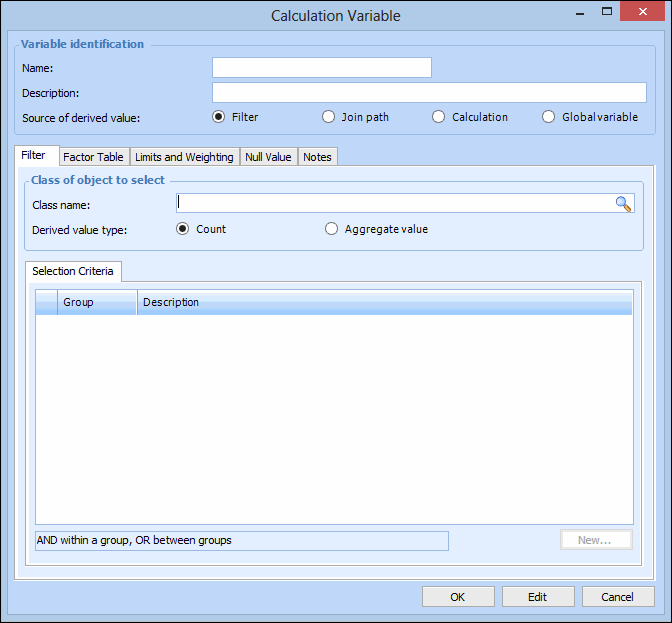
Calculation variables are used in asset health report calculations and can be derived from four sources. These sources are:
Global variables are pre-assigned a value and are available for all sites. For example, a global variable named “Monthly service cost” with a value of 175.00 can be multiplied by the number of times each asset was sent for service. Global variables can be defined at the enterprise level by an administrator, or they can be created in an asset health calculation.
This topic describes how to create a global variable type variable.

To Create a Global Variable Type Variable

1.
From the Asset Health Calculation window, Properties view, select the Calculation tab.
2.
3.
Click New. The Calculation Variable dialog appears.
4.
Note: The calculation variable name can only contain letters and numbers, must not contain spaces or special characters, or start with a number.
5.
6.
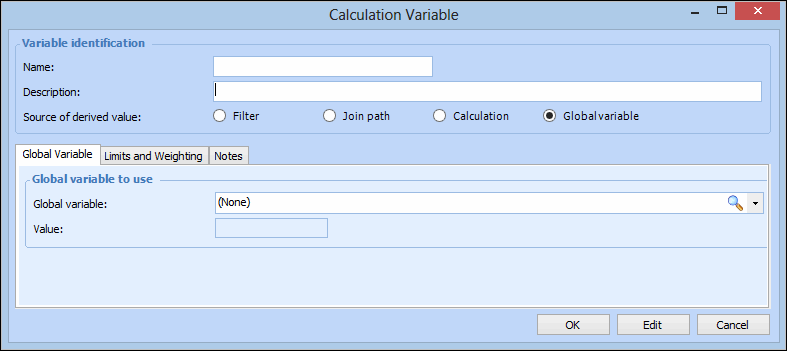
For Source of the derived value, select Global variable.
7.
On the Global Variable tab, click the Browse icon. The Global Variable dialog appears and you can select a global variable from the list.
Tip: To create a new global variable, click New from the Global Variable dialog and assign a numeric value to the variable. You can also create a global variable in the Customization Center view, Calculations tab, Settings tab. For more information, see Creating Global Variables.
8.
Select the Factor Table tab to convert the derived value using a factor table. For more information, see Defining a Factor Table for an Asset Health Variable.
9.
On the Limits and Weighting tab, enter any maximum or minimum values applied to this variable, and weighting factors, if needed. For more information, see Assigning Calculation Variable Limits and Weighting
10.
On the Null Value tab, select the behavior when the value for the variable returns a null value. For more information, see Assigning Null Value Behavior.
11.
On the Notes tab, you can enter any additional information about this calculation variable.
12.
When you are finished, click OK to save and close the Calculation Variable dialog.