Assigning Null Value Behavior

From time to time, an asset health calculation variable might return a null value. To avoid errors or unexpected results, you can determine what happens when a null value occurs by choosing to not calculate the value at all, use a default value, or apply a VB or stored procedure against the value. You can also assign a maximum value to use if the variable is null.
Null values are also considered in asset health availability indexes. These indexes produce a percentage based on the number of non-null calculation variables compared with all variables for a given calculation. For example, for ten total variables of which two are null-values, the remainder (eight) divided by the total represents an availability index of 80%. Availability indexes are displayed within asset health report tables.
For more information about creating asset health calculation variables, see Creating Asset Health Calculation Variables.
This topic describes how to assign null value behavior.

To Assign a Calculation Variable Null Value Behavior

1.
Make sure that editing is enabled.
2.
3.
4.
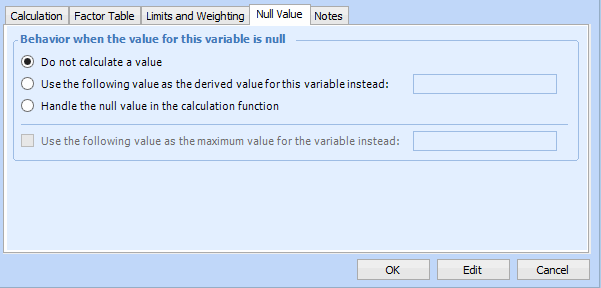
Select the Null Value tab. For example:
5.
Do not calculate a value: The value will be excluded in the calculation.
Use the following value as the derived value for this variable instead: Enter a numeric value that will be substituted when a null value occurs.
Handle the null value in the calculation function: The null value will be addressed within the VB script or stored procedure of the calculation itself.
Note: For multi-level variables where the primary variable is assigned “Use the following value” and it calls a secondary variable that is assigned “Handle the null value in the calculation” yet the secondary variable is not actually handled in the calculation, the primary calculation variable’s null value behavior is assumed.
6.
If you selected either Use the following value as the derived value for this variable instead or Handle the null value in the calculation function, you can select and enter a value for Use the following value as the maximum value for the variable instead.
7.
When you are finished, click OK to save and close the Calculation Variable dialog.