Creating an Asset Health Calculation Type Variable

Calculation variables are used in asset health report calculations and can be derived from four sources. These sources are:
A calculation type variable is a variable that itself uses a calculation to provide a value to the main calculation. For example, you might want to use this type of variable in a complex calculation with multiple variables that also need processing. Factor tables, minimum/maximum limits, and weighting can be applied to calculated variables that produce a numeric result.
Note: Calculation variables cannot use another calculation variable as an input.
This topic describes how to create a calculation type variable.

To Create a Calculation Type Variable

1.
2.
3.
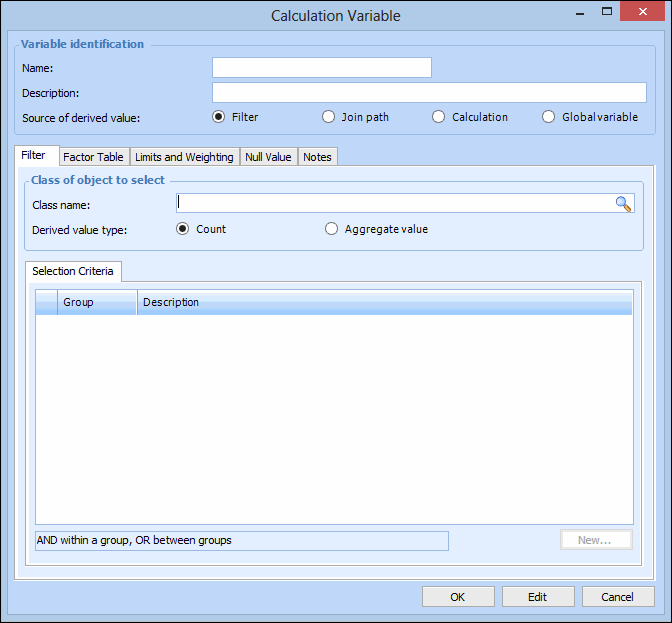
Click New. The Calculation Variable dialog appears.
4.
Note: The calculation variable name can only contain letters and numbers, must not contain spaces or special characters, or start with a number.
5.
6.
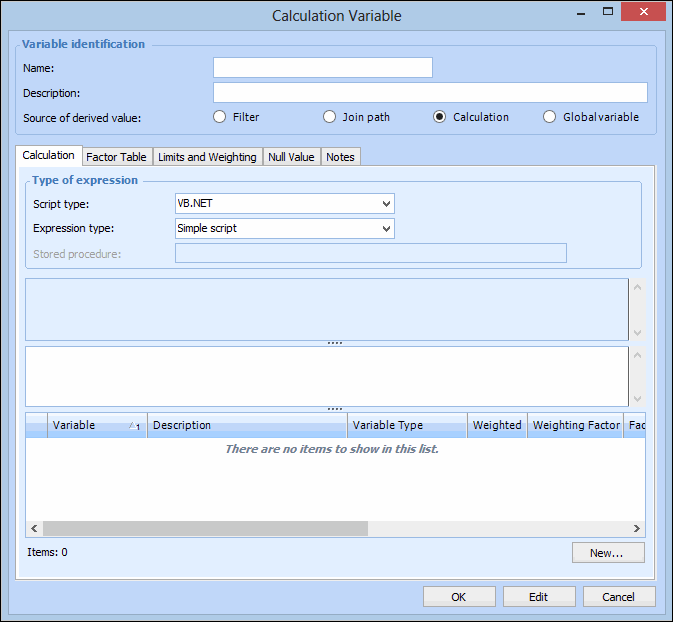
In Source of the derived value list, select Calculation. The window changes accordingly.
7.
VB.NET – Inputs and functions defined on the Calculation tab can be used to create a formula that is calculated at run time. This is the default option
C# – Inputs and functions defined on the Calculation tab can be used to create a formula that is calculated at run time
Stored procedure – The expression is provided in a stored procedure that receives its inputs at runtime and returns a value
8.
With the Complete class option, a starter script template is provided automatically, which you can edit as needed. You can also click Regenerate from Template to reset the formula to the starter script.
The template scripts include DebugData statements that you can augment to output trace messages when the Check (Test) or Check (Live) method is invoked to test the calculation.
Tip: You can view the template scripts by opening the Enterprise window, clicking the Administration menu and then Calculation options. For more information, see Defining Calculation Options.
9.
If you are entering a function, see Using Logical Operators in Calculations.
If you are using a formula, you can use three elements:
Example:
To enter a calculation that takes the average of two inputs, you would type:
(Input1 + Input2) / 2
The variables “Input1” and “Input2” are placeholders for data. When the calculation is evaluated, APM gets the current values of the inputs.
10.
Select the Factor Table tab to convert the derived value using a factor table. For more information, see Defining a Factor Table for an Asset Health Variable.
11.
On the Limits and Weighting tab, enter any maximum or minimum values applied to this variable, and weighting factors, if needed. For more information, see Assigning Calculation Variable Limits and Weighting.
12.
On the Null Value tab, select the behavior when the value for the variable returns a null value. For more information, see Assigning Null Value Behavior.
13.
On the Notes tab, you can enter any additional information about this calculation variable.
14.
When you are finished, click OK to save the variable and close the dialog.