Creating an Asset Health Calculation State

When an asset health calculation is performed, the resulting value can trigger an asset health calculation state. Available calculation states are based on defined conditions such as “Good”, “Fair”, and others. For example, an asset with a calculation result ranging from zero to 10 can be assigned a state of “Bad”, 11 - 20 could return a state of “Fair”, 21 - 30 could return a state of “Good”, and any value higher than 30 could be assigned a state of “Excellent” health. The calculation’s state are displayed on asset health readings charts.
You can create a calculation with only one state. If the result of the calculation does not fall within the range defined in the state, no state is set for that result. Calculation states are refreshed when asset health readings are generated. Assigning calculation states is optional.
This topic describes how to create an asset health calculation state.

To Create an Asset Health Calculation State

1.
2.
3.
Select the States tab.
4.
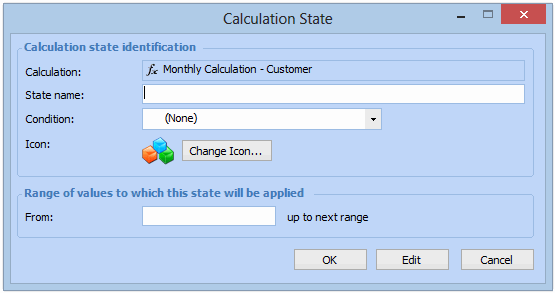
Click New. The Calculation State dialog appears.
5.
6.
Note: Conditions may be defined in the Customization Center with an Administrator licence. For more information, see Creating a Calculation Condition. For asset health, you may also define conditions on the Asset Health view, Settings tab, Conditions tab. For more information, see Creating an Asset Health Calculation Condition.
7.
8.
When you are finished, click OK to save and close the Calculation State dialog.
9.