Printing Asset Condition Reports

Several types of analysis reports are provided with APM, which you can print from the Asset Analysis window.
You can also create custom reports or modify existing reports. For more information, see Reports.
The following detailed and summary report types are most useful:
Assets by Consequences Score – Lists each asset from highest to lowest consequence score
Assets by Priority – Lists each asset from highest to lowest priority (condition) number
In all report types, each asset’s priority (condition) and total consequences score are listed. In detailed reports, the consequences scores for all criteria are also listed for each asset.
This topic describes how to print analysis reports. For information about saving a report to a file, see Printing Documents.

To Print Analysis Reports

1.
Open the analysis from the site’s or asset’s Asset Health view, Condition Analyses tab.
Tip: You can also print the report by right-clicking the analysis in any list, clicking Print, and then the report type. The reports at the top of the sub-menu are detailed. The reports in the bottom of the sub-menu are summaries.
2.
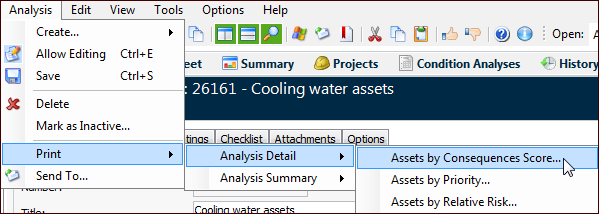
In the Asset Analysis window, click the Analysis menu, Print, the report category, and then the report you’d like to print.
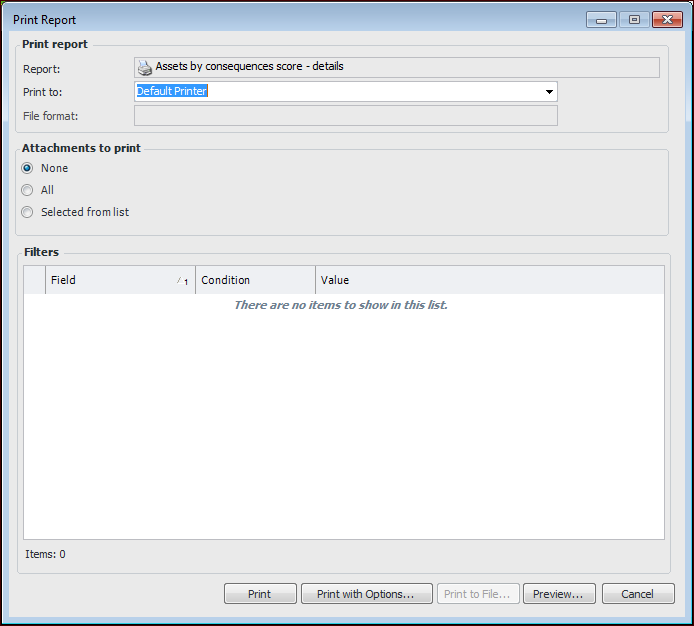
The Print Report dialog appears. For example:
3.
In the Print to box, select “Default Printer”.
4.
Click All to print files attached to the analysis.
Click Selected from list to choose the attachments to print. When you click Print or Print with Options, the Attachments to Print dialog appears, listing the file names, the objects they are attached to, and their attachment types.
Note: You cannot preview a print job that includes attachments.
5.
If you are not printing attachments, you can click Preview to see what the report will look like before printing it.
Tip: In the Preview dialog, click the File menu to print the report, export it to a file, or send it by email in one of several formats.
6.
Click Print. If you are printing selected attachments, the Attachments to Print dialog appears. Select the attachments and click OK.
Click Print with Options to change printer options.
If you are printing selected attachments, the Attachments to Print dialog appears. Select the attachments and click OK.
The Print dialog appears, where you can change the printer, select printer properties, and specify the number of copies to print. If you are not printing attachments, you can specify a page range. When you are finished, click OK.
The report and any selected attachments are sent to the printer and a progress dialog appears.