|
Analyzing Asset Condition
• Open the analysis and the Worksheet viewTo Analyze Assets
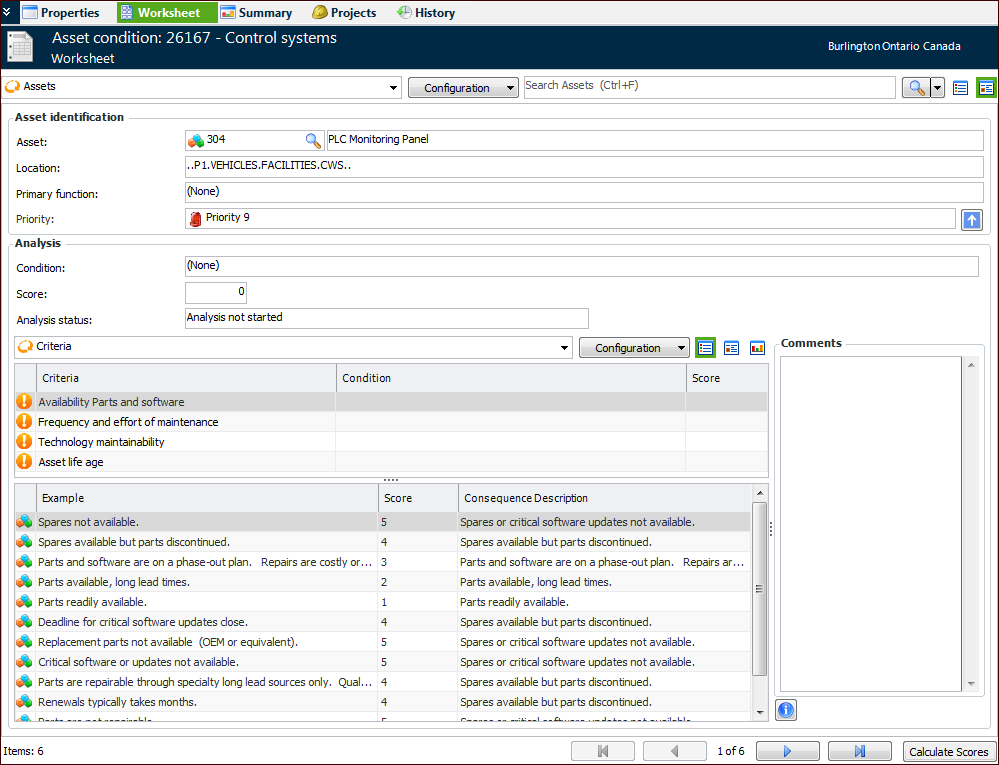
1. From the Site window, select the Asset Health view, Condition Analyses tab, and double-click the analysis. The Asset Analysis window appears, open to the Properties view, General tab.
3. Select the Worksheet view. For example:Tip: You can also select the Properties view, Assets tab. Double-click the asset that you wish to analyze. You can then enter scores in the Analysis Asset window.Tip: When returning to an analysis to complete it, you can select the “Analysis incomplete” configuration in the Worksheet view. The display moves to the first asset for which criteria have not been analyzed.
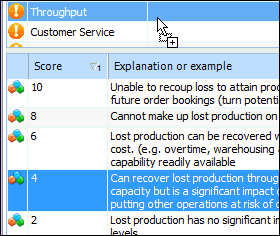
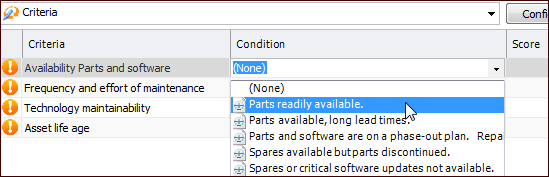
4. In the Analysis area, select a criterion in the Criteria table to populate the list of scores and examples.
8.
Tip: You can also copy an analysis from one asset to another. In the Worksheet view, in the Asset identification area, click the View as Table icon (). The analysis’ assets are listed in a table. Right-click the asset and click Copy Analysis. The Copy Analysis dialog lists the other assets in the analysis. Select the target asset and click OK.
Once you have analyzed the assets, you can view the data in the Summary view. You can also apply the results to the assets and create projects.