Creating Projects for Asset Condition Analyses

The asset condition analysis can be used to build and track reliability improvement projects. You can refer to the improvement opportunities for the analysis criteria to define the current situation and targets.
You might wish to review the asset condition analysis when improvements projects are completed. The outcome of the successful project can warrant the re-evaluation of the original analysis scores. Analyses can be revised at any time.
This topic explains the basic steps for adding a project from an asset condition analysis. For detailed information about projects, see Projects.

To Create a Project for a Condition Analysis

1.
From the Site window, select the Asset Health view, Condition Analyses tab, and double-click the analysis. The Asset Analysis window appears, open to the Properties view, General tab.
2.
3.
Select the Projects view and the Projects tab.
4.
Click New. The Project window appears.
5.
6.
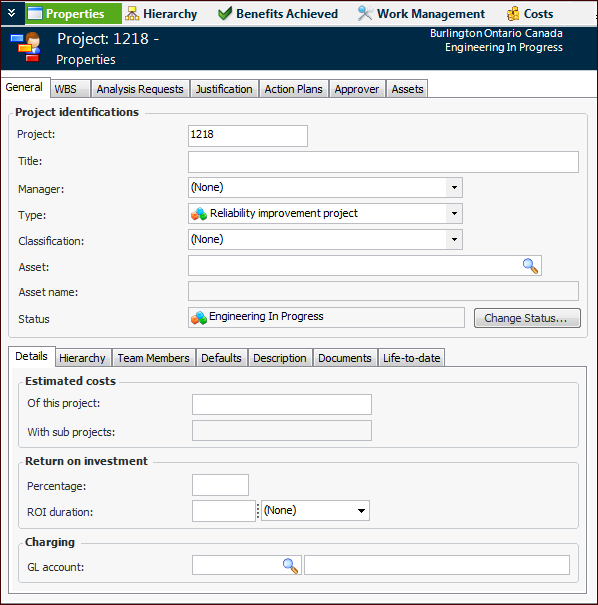
In the Type list, select the appropriate project type defined for your organization. In this example, the project type is Reliability Improvement. Additional tabs are added to the window, including the Assets tab. For example:
7.
8.
9.
Select the Assets tab and click New. The Project Asset dialog appears.
10.
In the Analysis list, select the current condition analysis.
11.
12.
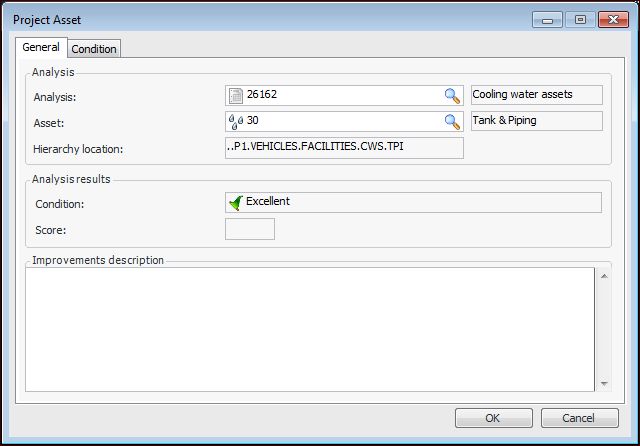
Select the Asset Listing tab and select an asset on the current analysis. Click OK. The asset information is displayed in the Project Asset dialog. For example:
13.
In the Improvements description box, enter a description for the project.
14.
Click OK. The project asset is added to the Assets tab.
15.
16.
The projects are listed in the Asset Analysis window, Projects view, Projects tab, along with the list of improvements planned for the assets.