|
Setting up Asset Activity Report Types
You should define the asset activity report section types, statuses, groups, and classifications before they can be referenced in an asset activity report type. For more information, see Setting up Asset Activity Report Section Types, Setting up Statuses for Asset Activity Reports, and Setting up Asset Activity Report Groups and Classifications.To Create an Asset Activity Report Type
1. From the Site window, select the Assets view, Settings tab. Select the Assets tab, and the Asset Management Settings node in the tree. Select the Activity Reports tab.Tip: You can also select the Administration menu, Asset Management Settings, then Asset Management. The Asset Management Settings window appears. Select the Activity Reports tab.
2. Select the Report Types tab. This tab displays a list of asset activity report types for the enterprise.
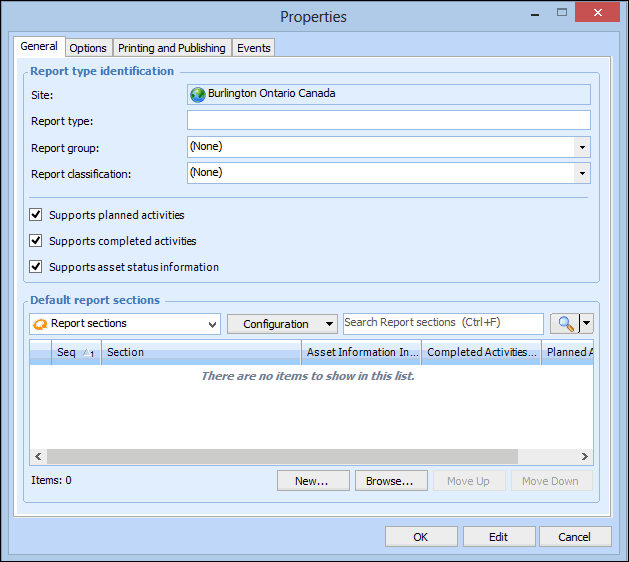
3. Click New. The report type’s Properties dialog appears.
4. On the General tab, complete the following information:
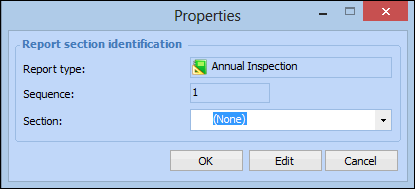
5. Click Browse to select from a list of pre-defined report section types, or click New to create a section type. The report section identification’s Properties dialog appears. For example:Tip: You can press F3 to create a new report section if a predefined section does not already exist. For more information on setting up an asset activity report section, see Setting up Asset Activity Report Section Types.
7. Click OK. The section is added to the report.Tip: You can select a report section type and click Move Up or Move Down to change the order of sections on a report. You can also right-click a report section and select Delete to remove the section from the report.
9. On the Options tab, complete the following information:
10. On the Printing and Publishing tab, complete the following information:
12. On the Events tab, complete the following report status assignments:
13. When you are finished, click OK to save the changes. The asset activity report type appears in the list.