
Setting up Asset Activity Report Section Types

You can define report section types to be used in different asset activity reports to suit your own requirements. Using report section types eliminates the need for recreating a report section each time you define an asset activity report.
For example, a planned activities report could include sections for an introduction, a list of planned inspections, a list of planned RBI’s and a conclusion. The same conclusion report type section could be reused in other asset activity reports, and so on.
A planned inspections section could include a list of the standard tasks or indicators planned for the next year, whereas a completed activities report section could include the inspection reports or work orders performed in the previous year.
You can also embed asset activity reports or sections as a section of an asset activity report. The report or section must be published to be considered. Note that embedded asset activity report sections may only include sections from the current report. For more information about publishing an asset activity report, see Publishing an Asset Activity Report.
This topic explains how to create asset activity report section types.

To Create an Asset Activity Report Section Type
1.
From the Site window, select the Assets view, Settings tab. Select the Assets tab, and the Asset Management Settings node in the tree. Select the Activity Reports tab.
Tip: You can also select the Administration menu, Asset Management Settings, then Asset Management. The Asset Management Settings window appears. Select the Activity Reports tab.
2.
Select the Section Types tab. This tab displays a list of asset activity report section types for the enterprise.
3.
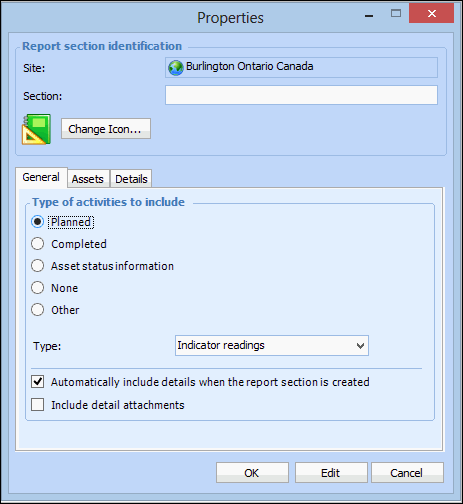
Click New. The report section type’s Properties dialog appears.
4.
In the Section box, enter a name for the report section type.
5.
On the General tab, complete the following information:
Planned – Activities that are currently planned to be performed in the future.
Completed – Activities that were completed during the period of the report.
Asset status information – Activities relating to asset status information during the period of the report.
None – No activity detail is included in this section.
Other – To add custom objects to the list.
6.
Indicator readings – the indicator reading’s next due date is used
Jobs – only standard jobs are included
Tasks – only standard tasks are included
Work order tasks – completed, closed, or canceled work order tasks are excluded
Work requests – completed or canceled work requests are excluded
Alarm acknowledgments – incorrect readings, incorrect alarms, or monitoring statuses are excluded; source is not auto-acknowledged
Asset activity report – report must be published
Asset activity report section – section must be a published section from the current report
Downtime incidents – rejected statuses are excluded
Failures – canceled failures are excluded
Inspection reports – includes checksheets and inspection reports
Override incidents – canceled incidents are excluded
Projects – only completed projects are included
Work order tasks – only completed or closed work order tasks are included
Work orders – only completed and closed work orders are included
Work requests – only completed work requests are included
Asset health readings – asset health reports must be published
7.
On the Assets tab, complete the following information:
Select a recursion for asset selection. Your choices are: Asset and above, Asset and below, or Asset only. An asset’s installed components will also be included, when applicable. This option is not available if activities to include is set to “None”.
8.
On the Details tab, complete the following information:
9.
Click OK. The section type is completed. The section type can now be included in an asset activity report. For more information, see Setting up Asset Activity Report Types.