|
Setting up Asset Activity Report Groups and Classifications
To Create an Asset Activity Report Group
1. From the Site window, select the Assets view, Settings tab. Select the Assets tab, and the Asset Management Settings node in the tree. Select the Activity Reports tab.Tip: You can also select the Administration menu, Asset Management Settings, then Asset Management. The Asset Management Settings window appears. Select the Activity Reports tab.
2. Select the Report Groups tab. This tab displays a list of asset activity report groups for the enterprise.
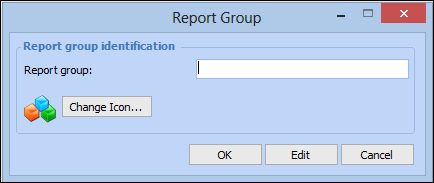
3. Click New. The Report Group dialog appears. For example:
4. In the Report group box, enter a short description for the report group.
5. Click Change Icon if you want to change the icon for the report group.
6. Click OK to save the changes. The report group appears in the list.To Create an Asset Activity Report Classification
1. From the Site window, select the Assets view, Settings tab. Select the Assets tab, and the Asset Management Settings node in the tree. Select the Activity Reports tab.Tip: You can also select the Administration menu, Asset Management Settings, then Asset Management. The Asset Management Settings window appears. Select the Activity Reports tab.
2. Select the Report Classifications tab. This tab displays a list of asset activity report classifications for the site.
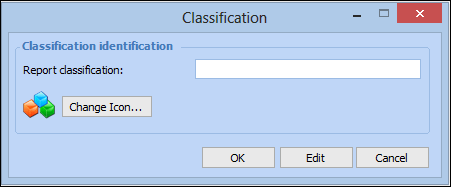
3. Click New. The Classification dialog appears. For example:
4. In the Report Classification box, enter a short description for the report classification.
5. Click Change Icon if you want to select a different icon for the report classification.
6. Click OK to save the changes. The report classification appears in the list.